
Transcribe Discord Calls in Real Time
Kalima captures the sound playing on your computer and turns Discord voice channels and calls into a live, speaker-labeled transcript. No bot joins your server.
Live translation and AI summaries use the same recording, so your notes and action items are ready as soon as the call ends.
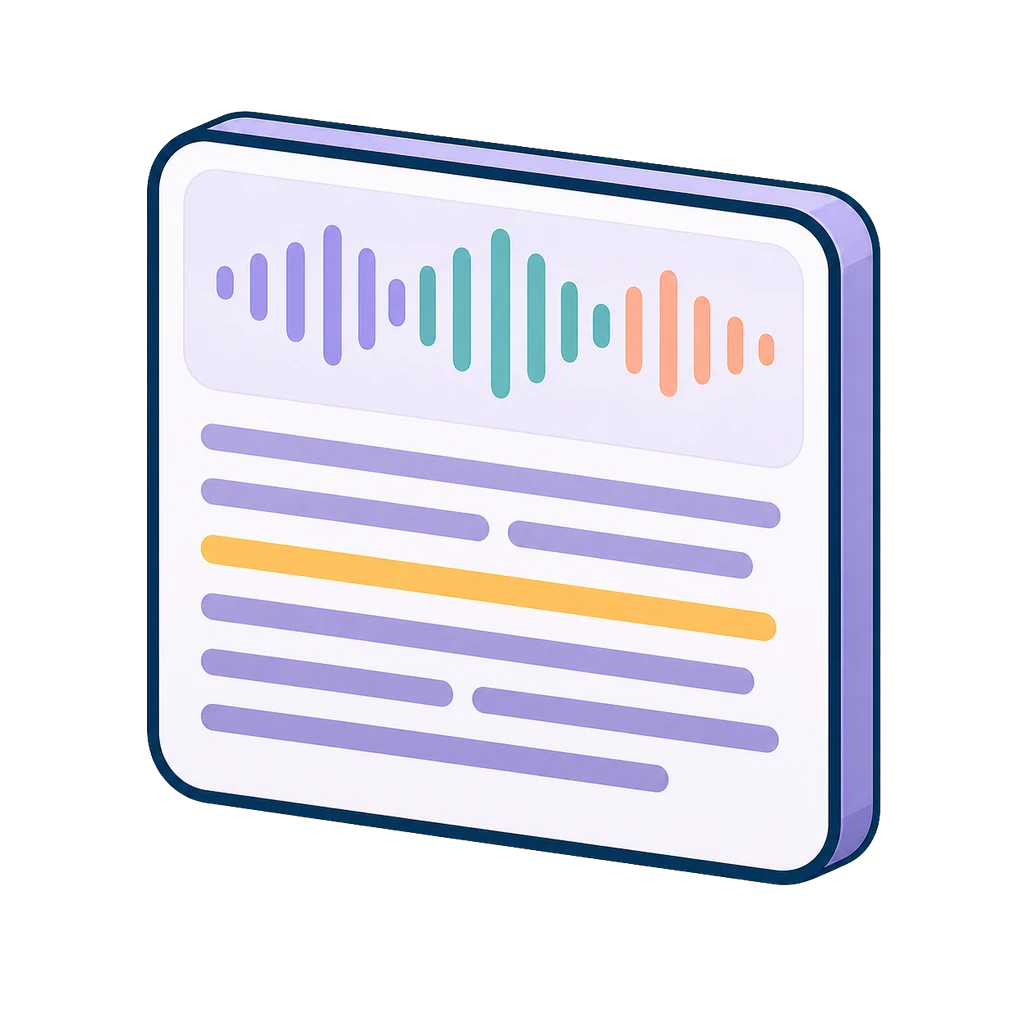
Transcribe Discord without a bot on your server
Discord plays voice audio through your computer just like any other app. Kalima records that audio locally and creates a live transcript of a voice channel, group call, or Go Live stream. You do not need to install a bot, add a visible participant, or request server permissions.
Recording happens on your computer, not inside Discord. You decide what to record and when. Start or stop the transcript at any point, without changing anything in your server or channel.
Let's lock the launch date before we wrap.
Works for me, I'll prep the release notes.
Can we get this transcript in Spanish too?
¿Podemos tener esta transcripción también en español?
Why transcribing Discord calls is harder than it looks
Discord is built for communities and live voice chat, not for keeping records. Teams that want a written log of their voice channels keep hitting the same problems.
Discord bots need server permissions and everyone can see them
A bot that joins a voice channel shows up in the member list and needs the server owner to grant it access. It can also make members or guests uneasy as soon as the conversation turns sensitive.
Voice channels have several people talking over each other
Discord voice is made for casual, overlapping chat. Tools that process a single audio stream often merge everyone into one block of text, with no way to tell who said what.
Community and creator calls mix languages
Discord communities are often international. When a call shifts from one language to another, a single-language transcript quietly drops whatever it cannot follow.
How to transcribe a Discord call with Kalima
The process is the same for a server voice channel, a direct-message call, or a Go Live stream. Capture the sound playing on your computer, then follow the transcript as it appears.
Open Kalima before you join the channel
Launch the Kalima desktop app and start a live session. Choose system-audio capture so Kalima records the Discord audio playing on your computer. That includes everyone in the channel, not just your microphone.
Join the Discord voice channel as usual
Join the channel or call in the Discord desktop app. Kalima records each speaker as their voice plays through your speakers or headset. You can also include your microphone, so your own voice is captured and labeled separately.
Read speaker-labeled lines as the conversation happens
The transcript appears in real time with speaker labels. If someone speaks another language, live translation appears alongside it. Keep the transcript open next to Discord and follow along.
Get your notes the moment the call ends
Stop the session when the call ends. An AI summary with key decisions and action items is ready straight away. You can also export the full transcript as SRT, VTT, PDF, JSON, or plain text.
What bot-free Discord transcription gives you
Recording system audio on your own computer, instead of running a bot on your server, gives you a full transcript without changing your community space.
No bot on your server, no permission requests
Nothing joins your Discord server or voice channel. Your members and guests see no extra participant, no recording indicator, and nothing that needs the server owner to grant permissions.
Every speaker captured, not just you
Kalima records the sound playing on your computer, so the transcript includes everyone in the channel, not only the person speaking into your microphone.
A live transcript you can act on during the call
The written record builds in real time with speaker labels. You can scroll back to check something said a few minutes ago without breaking the flow of the conversation.
Translation and summary in one pass
When your community mixes languages, live translation keeps the transcript readable throughout. After the call, the AI summary and action items come from the same audio, so nothing is processed twice.
Feature fit for Discord calls
The things people usually want from a Discord transcript, and how Kalima handles each one.
Discord transcription questions
Common questions about transcribing Discord voice channels and calls with Kalima.
Transcribe your next Discord call
Start for free and get a live, speaker-labeled transcript of your next voice channel session, without adding a bot to your server.